Set up transfer from Axiom Capital Planning
-
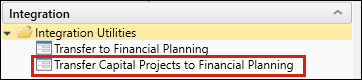
From the Fin Plan Admin task pane, go to Integration > Integration Utilities > Transfer Capital Projects to Financial Planning.
-
Select Capital Planning Year to Transfer to Axiom Financial Planning
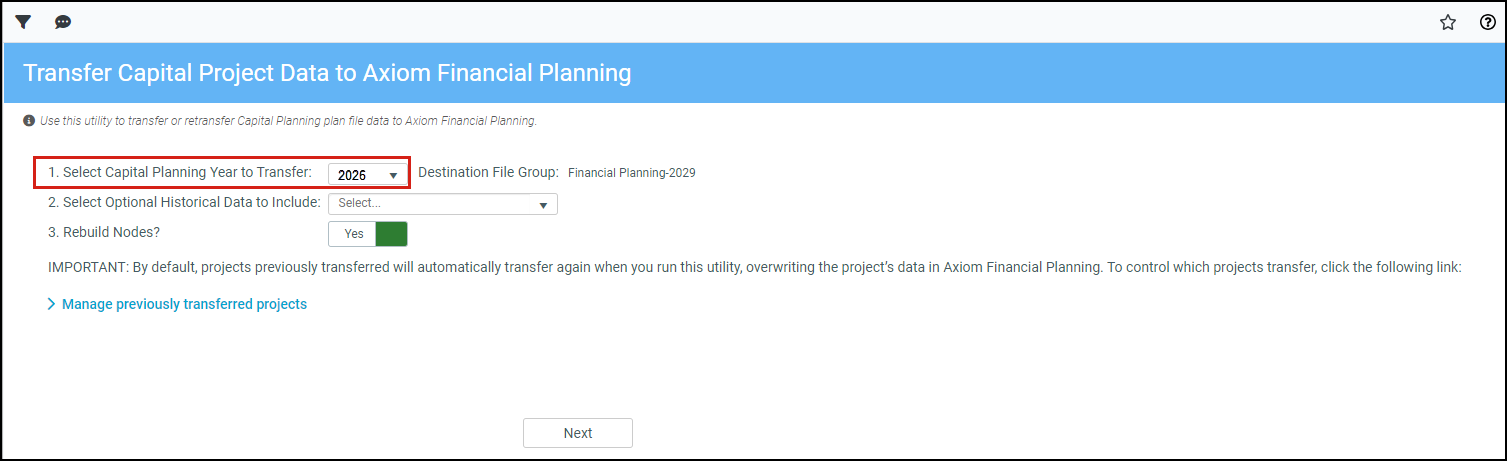
NOTE: The Destination File Group is preselected as Next Year and cannot be changed.
-
(Optional) From the Selected Optional Historical Data to include drop-down, select the years to include, and then click OK.
IMPORTANT: Including historical data may create variances in your historical reconciliations.
- For Rebuild Nodes?:
- Leave the option set to Yes (the default) to automatically build or rebuild nodes in Axiom Financial Planning after transferring the Capital Planning project data.
- Click the toggle to No if you do not want to automatically rebuild nodes.
If change your mind later, you can always use the Node Rebuild Utility. The Transfer Summary page includes a link to the utility if you select No.
- (Optional) If desired, manage previously transferred projects. If this is the first time you have transferred project data, no projects are listed.
- In the lower part of the page, click Next.
NOTE: By default, any previously transferred projects will transfer again unless you disabled them. See Manage transferred capital projects for more information on enabling or disabling transfers.
Continue to Select capital projects for transfer.
